
Copyright (c) 2023, Intercom, Inc. (
[email protected]) with Reserved Font Name "Montserrat". This Font Software is licensed under the SIL Open Font License, Version 1.1.Copyright (c) 2023, Intercom, Inc. (
[email protected]) with Reserved Font Name "Inter". This Font Software is licensed under the SIL Open Font License, Version 1.1. Table of contents How to Create a List Item


Begin adding List Items to a List Type to create and track Issues, Complaints, and Punch List Items
Updated over 2 years ago Table of contentsNavigate to your project's Lists page.
Select the +Create button.

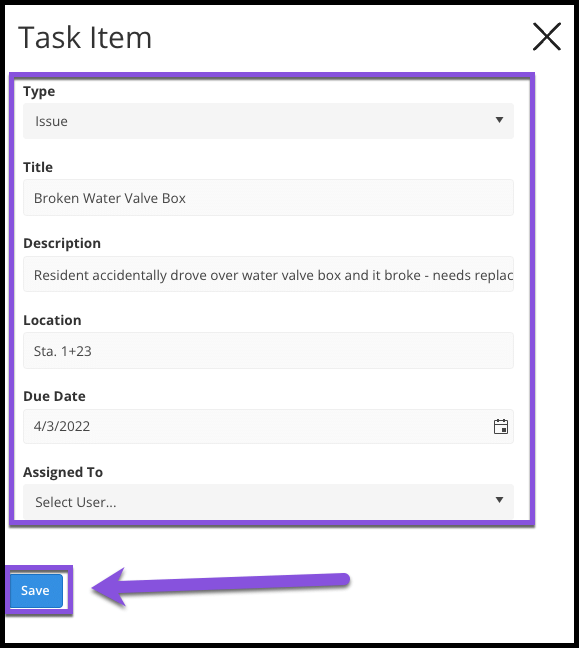
From the side blade widget, enter the list item Type, Title, Description, Location, Due Date, and Assigned To.
Note: You can Assign List Items to contractors, users with access to the project, or leave this field blank.
Select the Save button.

The new list entry will display in the grid. You can begin adding other list items to this List Type or Category to create a running list. You can add Attachments and Comments to the list item and Mark Complete when ready.

Continue on to learn more: