
Copyright (c) 2023, Intercom, Inc. (
[email protected]) with Reserved Font Name "Montserrat". This Font Software is licensed under the SIL Open Font License, Version 1.1.Copyright (c) 2023, Intercom, Inc. (
[email protected]) with Reserved Font Name "Inter". This Font Software is licensed under the SIL Open Font License, Version 1.1. Table of contents Submitting Your Field Report for Review


Submit your Report for Review
Updated over 2 years ago Table of contentsCongratulations! You've completed your report. Now what?
Time to Submit your report for review.
To submit your Field Report, locate the Report Details section within your report (located at the top of the webpage, first section).

Select the Submit button.

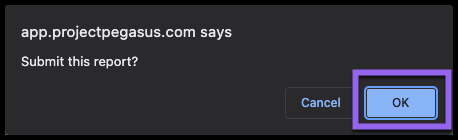
Select the OK button from the pop-up box to confirm your report submission.

You will be redirected to the Field Reports page, your Field Report Status will display as Submitted in the grid. Nice job!
REMEMBER: Once you Submit a Field Report for review, you are no longer able to modify it unless it gets Rejected back to you. You can still view the contents of your Submitted Report from The Field Reports grid.
Related Articles Creating a Journal Report Reviewing Reports in Pegasus Rejecting Reports Approving Reports Resolve Pending Reports in a Pay Period Did this answer your question?😞😐😃